
Scouting a Match
The Game Screen
The game screen is where all match scouting takes place. In the top right corner, you can see the match timer, the current game stage (Pre-Match, Autonomous, or Teleop), and the team you are scouting.
Before the match begins, select the robot’s starting position. Choose the location that best matches where the robot is placed on the field. Starting positions include each trench, each bump, and the hub.
As soon as the gates close or the match begins, tap the play button to synchronize the app’s timer with the field timer.
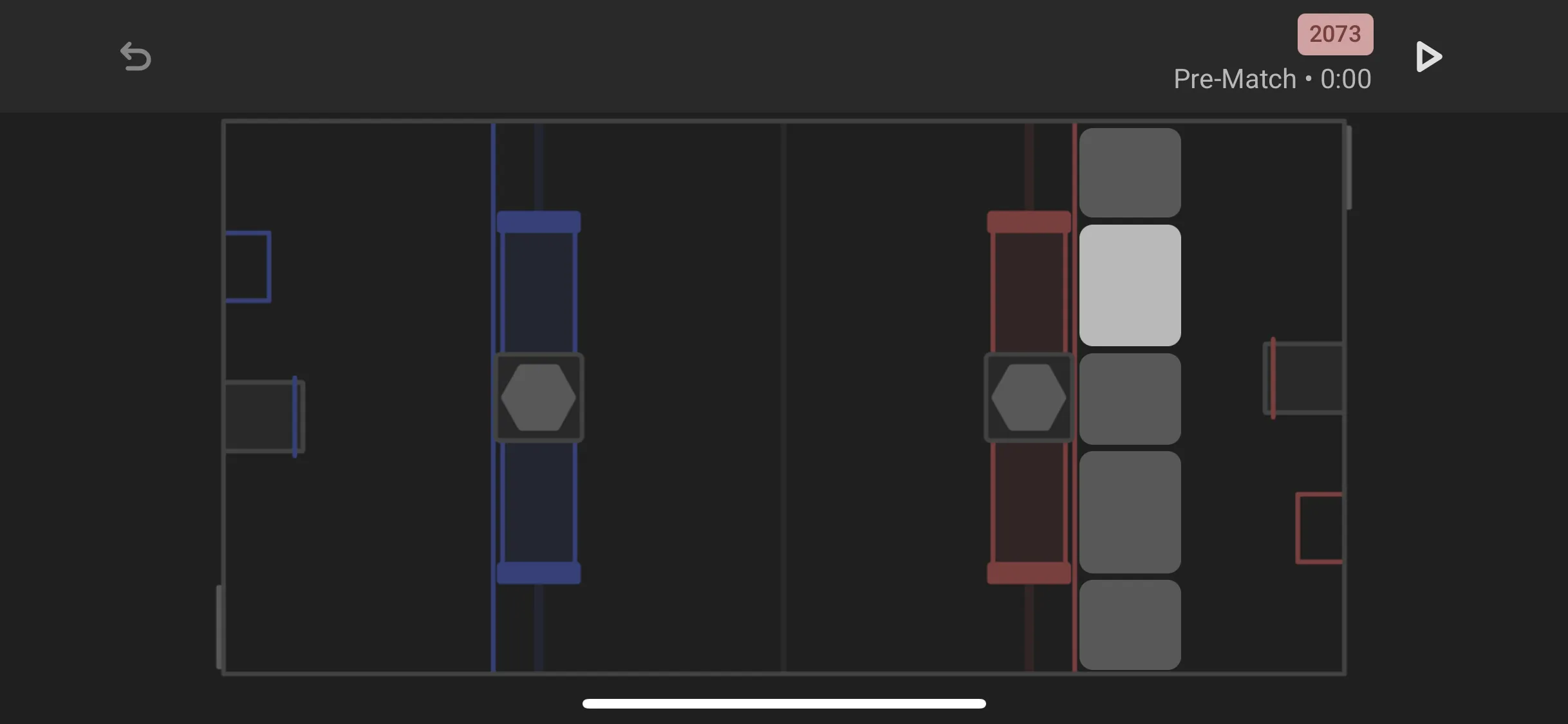
The collection interface is contextual. Only actions that are relevant to the current stage of the match are shown, helping you stay focused on the field rather than the screen.
Autonomous
During autonomous, actions are tracked more precisely. Stay focused during the first 20 seconds of the match.
Each button represents a specific action performed by the robot.
If the robot intakes from the outpost or outtakes fuel to the corral, tap the yellow flag icon. Select the yellow icon to intake and the green icon to outtake.
If the robot intakes from the depot, click the yellow intake icon on the bottom right.
If the robot climbs during auto, click the purple rectangle on the right side of the screen.
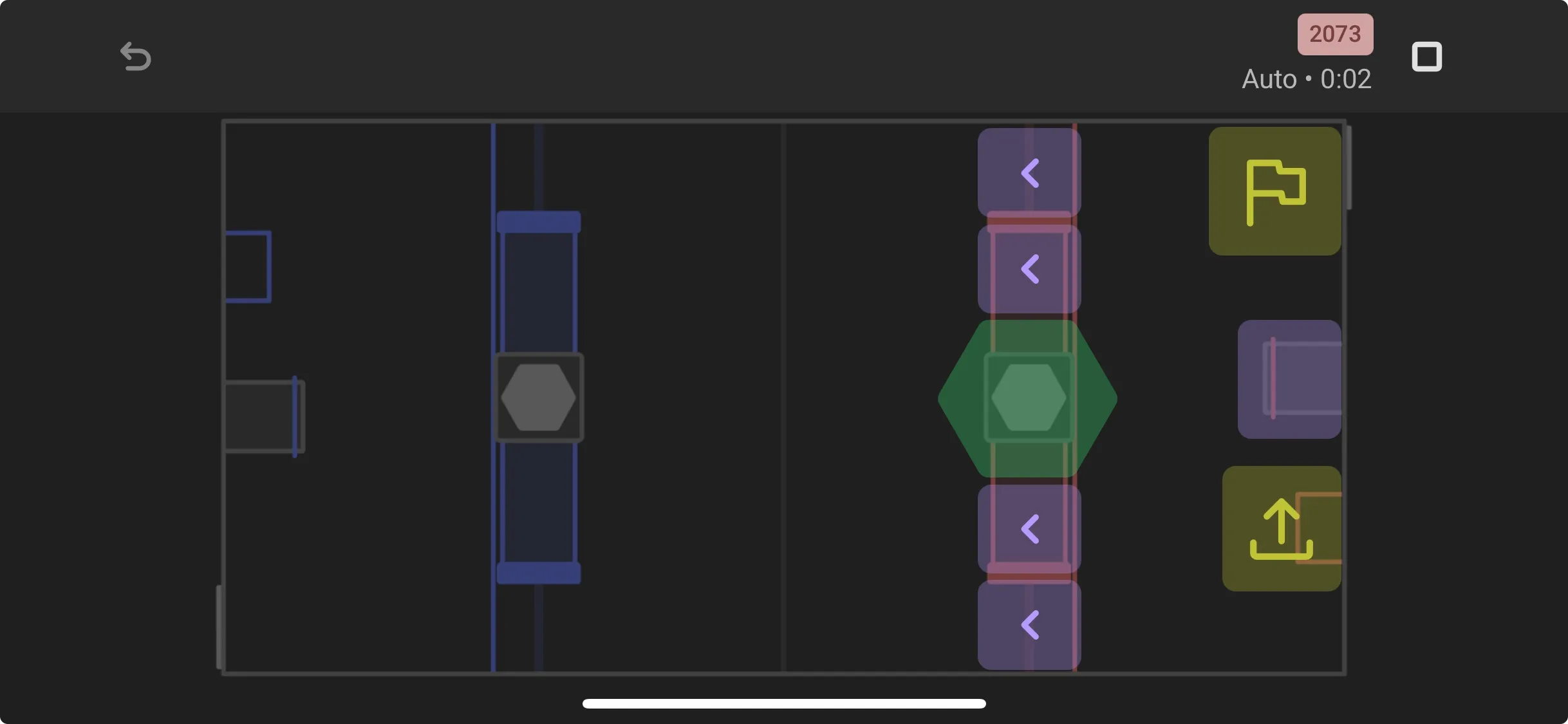
If the robot crosses into the neutral zone, tap the corresponding purple button for where it crossed. Make sure to pay attention to whether the robot crossed near the hub or the bump.
If the robot attempts to scatter fuel in the neutral zone, tap the blue bomb icon. Use the yellow intake icon when the robot intakes fuel in the neutral zone.
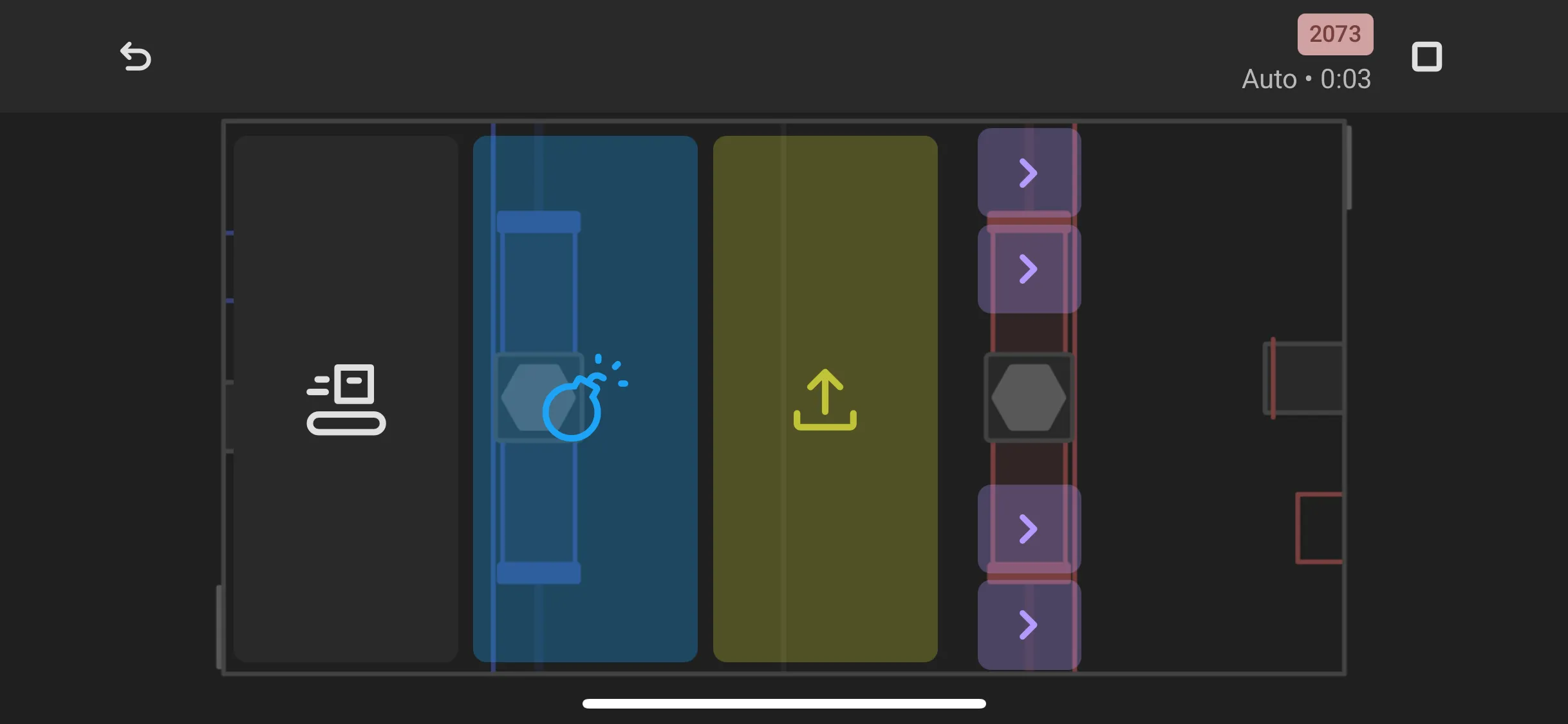
Shooting fuel uses a drag interaction instead of repeated taps. Hold the green hexagon and drag outward while the robot is shooting.
There are two shooting modes available:
Rate (default)
In rate mode, dragging farther from the hexagon increases the rate at which balls are counted. Try to match the speed of the count to the rate at which balls are scored.
Count
In count mode, the distance from the hexagon determines how many balls are scored. Move closer if too many balls are counted.
While holding the button, Lovat also tracks how long you are pressing. Try to begin pressing when the robot starts shooting and release when it stops.
Feeding works similarly, except you drag outward from the feeding icon instead of the hexagon.
Teleop
When teleop begins, the interface transitions automatically.
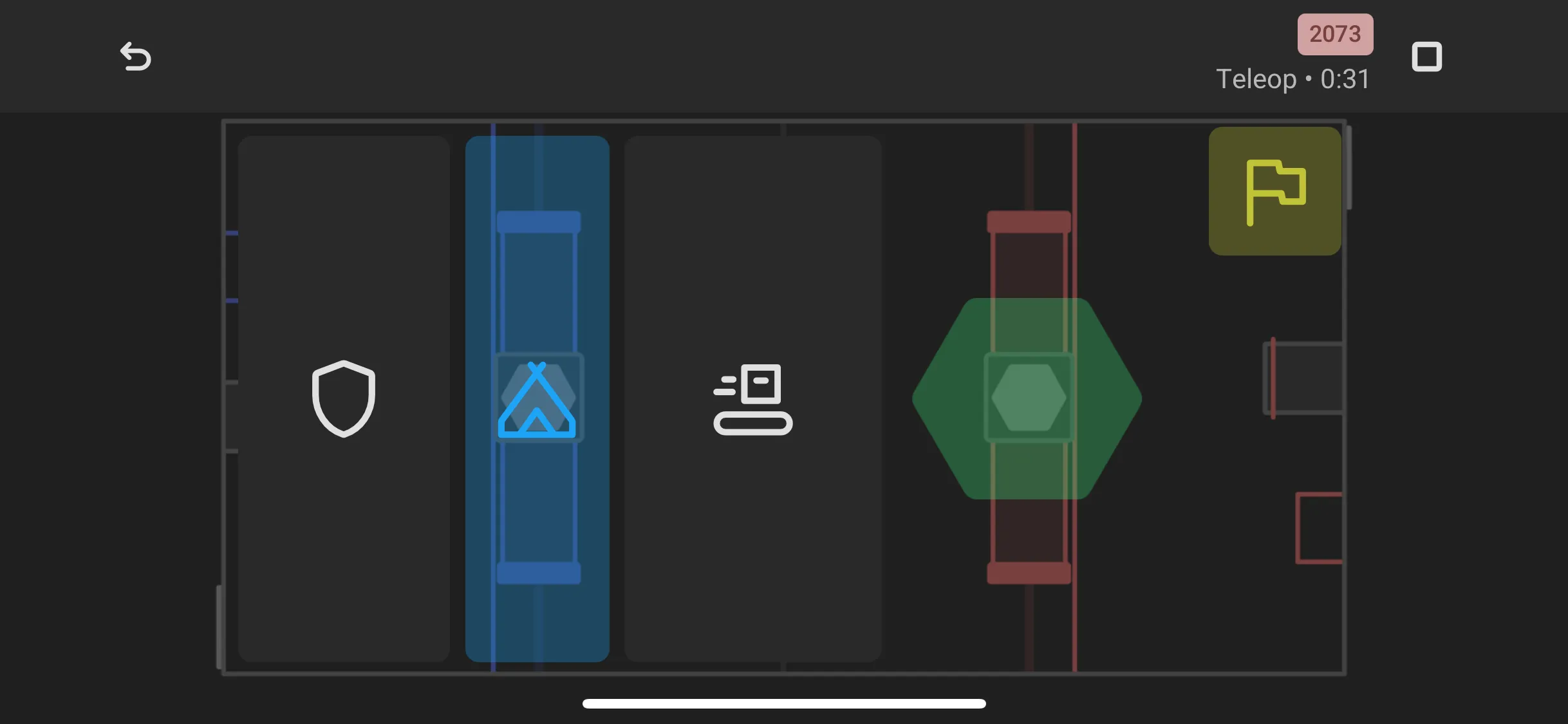
Scoring and feeding actions remain the same as autonomous. Intake is only recorded when the robot uses the outpost or places fuel into the corral.
Defense is tracked by duration rather than by taps:
- Hold the shield icon while the robot is actively playing defense by contacting or pinning an opposing robot.
- Hold the camping icon when the robot is intentionally blocking access to a field element such as a trench or ramp.
The climb button appears during the final 30 seconds of the match. Tap it if the robot attempts or completes a climb.
If you make a mistake at any time, use the undo button.
Post Match
After the match ends, you will answer several additional questions about the robot’s performance.
Only select options based on what happened in this match. Do not include abilities or actions observed in previous matches.
These questions help describe aspects of performance that cannot be captured through button inputs alone.
Robot Roles
Select every option that corresponds to a role the robot did for a significant portion of the match.
Cycling: The robot cycles game pieces between pickup and scoring locations.
Scoring: The robot primarily focuses on scoring fuel at the hub.
Feeding: The robot feeds fuel to other robots on the alliance.
Defending: The robot primarily plays defense against the opposing alliance.
Immobile: The robot was immobile or non-functional during the match.
Accuracy
This only appears if you recorded the robot scoring during the match. Select one of the following options.
90-100%: Between 90% and 100% accuracy
80-90%: Between 80% and 90% accuracy
70-80%: Between 70% and 80% accuracy
60-70%: Between 60% and 70% accuracy
50-60%: Between 50% and 60% accuracy
<50%: Less fuel scored than missed.
Feeder Type
Select each of the following options you observed the robot doing during the match.
Continuous: The robot feeds fuel continuously without stopping.
Stop to Shoot: The robot stops to shoot when feeding.
Dump: The robot dumps fuel when feeding.
Defense Effectiveness
This only appears if
- The “Defending” robot role is selected, OR
- You recorded the robot as defending (including camping) during the match Select one of the following options.
Great: The robot’s defense was exceptional and highly disruptive.
Good: The robot’s defense was effective and impactful.
Average: The robot’s defense was adequate but not exceptional.
Poor: The robot’s defense was mostly ineffective with minimal impact.
Terrible: The robot’s defense was ineffective and detrimental.
Intake Type
Select one, none, or both of the following options. Each option is automatically checked and disabled if that intake method was recorded during the match.
Ground: The robot intakes fuel from the ground.
Outpost: The robot intakes fuel from the outpost.
Field Traversal
Select one, none, or both of the following options. Each option is automatically checked and disabled if that traversal type was already used during autonomous.
Trench: The robot drove under the trench.
Bump: The robot drove over the bump.
Auto Climb
Select one of the following options.
Not Attempted: The robot did not attempt to climb during autonomous.
Failed: The robot attempted to climb during autonomous but failed.
Succeeded: The robot successfully climbed during autonomous.
Endgame Climb
This only appears if you clicked the endgame climb box during the match. Select one of the following options.
L3: The robot successfully climbed to Level 3.
L2: The robot successfully climbed to Level 2.
L1: The robot successfully climbed to Level 1.
Failed: The robot attempted to climb but failed.
Beached
Select one, none, or both of the following options.
On Fuel: The robot got beached on fuel.
On Bump: The robot got beached on the bump.
Driver Ability
Select one of the following options.
Exceptional: Impressively precise and efficient. Evades defense with little time lost and thinks ahead.
Great: Driver is well-practiced and makes very few mistakes.
Average: The driver operates the robot competently, but nothing stood out.
Below average: Moves inefficiently and makes some mistakes.
Poor: Struggles to keep the robot under control or makes frequent mistakes.
Scores While Moving
Select one of the following options.
No: The robot does not score while moving.
Yes: The robot scores while moving.
Robot Broke
Check this box if the robot mechanically broke during the match. Checking it reveals a text field for describing how the robot broke.
Notes
The notes field is optional. Use it only for information that is not already reflected in the match data.
Good notes are specific, short, and readable. For example:
- “Long shooting range from neutral zone”
- “Lost comms with ~20s left”
- “Avoided defense well near trench”
Avoid writing information that is already recorded, such as how many pieces were scored.
Some useful things to include in notes are:
- Mechanical, electrical, or software issues
- Penalties caused by the robot (if you are certain)
- Human player performance
- Strategic behavior not captured elsewhere
- Interaction with alliance partners
Always keep notes respectful.
Uploading Data
After submitting your report, the app will attempt to upload data automatically using Wi-Fi or cellular service.
If the upload fails, your data is still saved locally. A QR code will appear that can be scanned by a scouting lead using Lovat Dashboard, or you can upload the data later from the history page.
Once the upload succeeds, tap Done and continue scouting your next assigned match.